Dynamics CRM manages information and data entry using different Forms per Type of Record – so we have a Contact Form that controls the format and way that a user might enter information about a Contact for example.
This provide a great flexible way of allowing a User to enter information about a record, how this is fundamentally ‘free-form’ in that the Layout of the Form does know anything about why the User might be creating or editing that Contact.
So this is more of a system-functionality approach over a process-drive approach.
However, say we want to impose a structured process in our CRM that forces the User to work through a number of Steps in a more Wizard like approach? Well, in CRM 2011 and beyond, we might consider using a Dialog Process for this kind of requirement.
Why might Dialogs be useful..
Dialogs are particularly useful for a process with strict validation or compliance steps – so, say in the Property Industry, if we imagine a scenario where we are putting a Property On-Market this will be subject to a number of steps:
- Confirm the Asking Price we have specified, and the Pricing Strategy
- What Date did the Property formally go on the Market
- Which Agents or Auctioneers are we using to Market the Property
- Number of Days On the Market before we should consider a Review
These details are key to the process, and so must be enforced as part of putting the Property on the Market in a compliant fashion.
With this in mind, we have various options in CRM for how to implement this process and Dialogs can be a good option, as simply using a Form might result in some of the details for this process being missed whereas we can enforce these when using a Dialog.
Why might Dialogs not be useful!
Dialogs in CRM are good but also bad in using either a Modal Dialog or other Pop-up to implement their functionality – this is not the best experience for a Web Application and so not the most seamless User Experience.
To this end, from CRM 2013 and 2015, Dynamics CRM introduced Business Process Flows which other some elements of this functionality but from directly in the Form itself rather than a separate Pop-up.
These offer a better User Experience, however the functionality is not quite as integrated into the CRM Workflow Engine as Dialogs are, and so do quite offer the same level of bespoke functionality that a Dialog does.
So as with many things in Dynamics CRM, there are various tools available to us for implementing a particular Requirement and the key is using the right tool for the requirement at hand.
(we also have the option to embed custom screens into Dynamics CRM to offer deeper customisation, but that is another story!)
How to Create a New Dialog
The following guide is aimed at walking us through creating a new Dialog in CRM, taking the simple example of a Dialog that provides a Salesperson with a structured way of updating the Contact Details for an existing Lead.
Navigation
1. From the navigation menu, select Microsoft Dynamics CRM > Settings > Processes.
2. Once the default My Processes view is displayed, click the Newbutton from the menu.
Creating the Dialog
1. Provide a unique Process Name for the new dialog.
2. Select Lead as the Entity.
3. Select Dialog as the Category.
4. Leave New Blank Process as the selected Type.
5. Click OK.
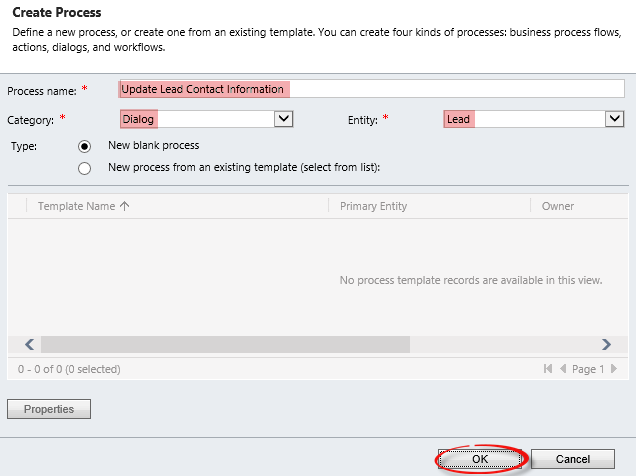
The Create Process window closes and a new Information window appears with the General tab selected.
![clip_image002[4]](https://www.powerobjects.com/wp-content/uploads/2014/01/Creating-6.png "clip_image002[4]")
Creating the Prompts
Dialogs operate as a series of pages, much like a common setup wizard. Each page should contain specific functions that flow to subsequent pages.
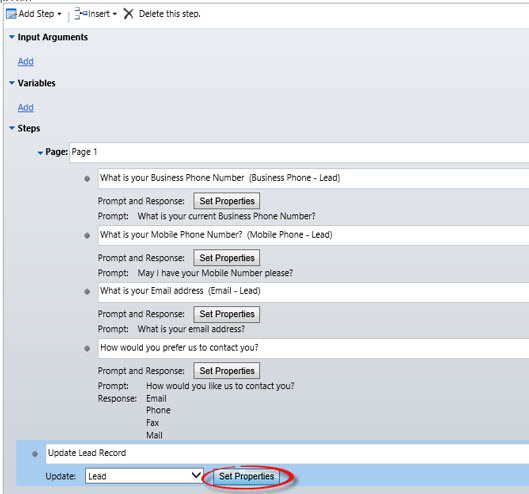
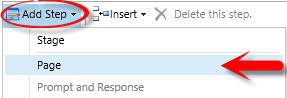
1. Click Add Step.
2. Select Page.
3. Choose a unique name for the page (Page 1).
4. Select the row beneath the Page description and click Add Step.
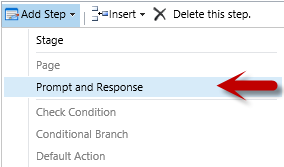
5. Choose Prompt and Response from the drop down list.
6. In the new available field, provide a description for the Step.
7. Click Set Properties.
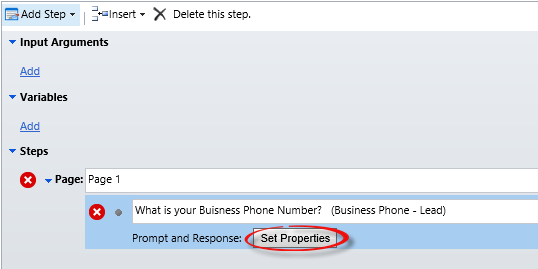
8. Provide the Prompt Text in the text area. This will be the text displayed to the CRM user.
9. Provide a Tip Text in the text area. Tip Text provides additional information for the selected prompt.

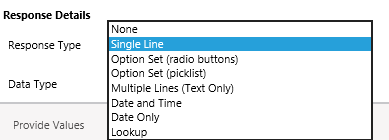
10. In the Response Detailssection, choose Single Line as the Response Typefor the prompt. The Response Type correlates to the type of information being captured. A phone number is a single line of text, so Single Line is the appropriate choice.
11. Choose Text as the Data Type for the prompt. While business phone is a number, it is not considered a numeric value (you wouldn’t perform arithmetic on it), so it is stored as text.
12. Leave Log Responsechecked as Yes.
13. Leave Default Value blank.

14. Click Save and Close.
15. Repeat steps 11-21 for Mobile Phone and Email.
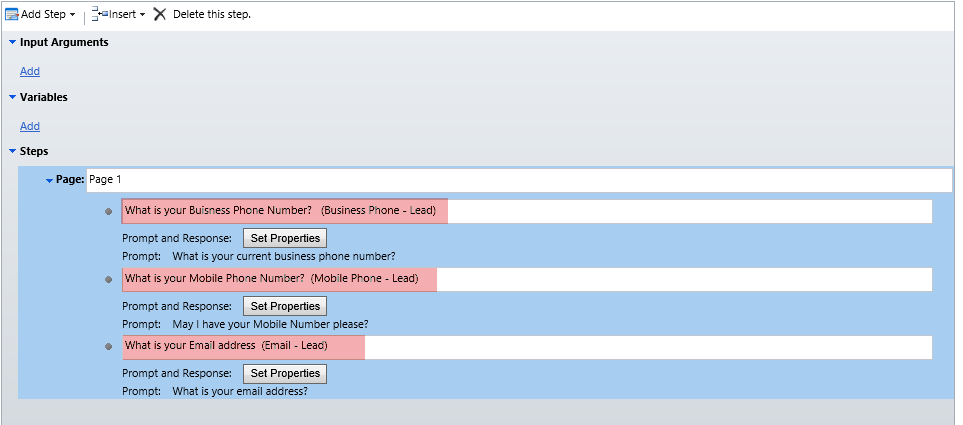
Now that we’ve captured some data, let’s create a prompt for the lead’s preferences.
16. Create a new preferences prompt with Prompt Text.
17. In the Response Details choose Option Set from the Response Typelist
18. In Data Type select Integer.
19. Leave Log Responsechecked as Yes.
20. Leave Default Value blank.
Creating Prompt Responses
Now we need to set up the preference options. Since this is an actual field within CRM the response options will need to relate to the CRM options. Here are the available CRM preference fields:
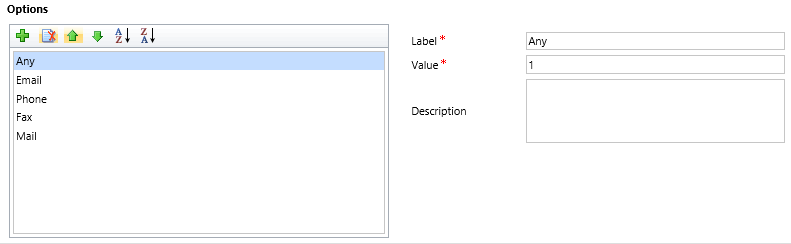
In our example, we do not want the CRM user to choose the Any option, so we will omit that as an option. It is important to remember that the values in the prompt must match the CRM values.
1. Click on the icon to add a new response value.
2. In the Value field, enter 2 as the value.
3. Enter Email as the Labelvalue.

4. Repeat steps 28-30 for Phone, Fax and Mail incrementing the value by 1 each time.
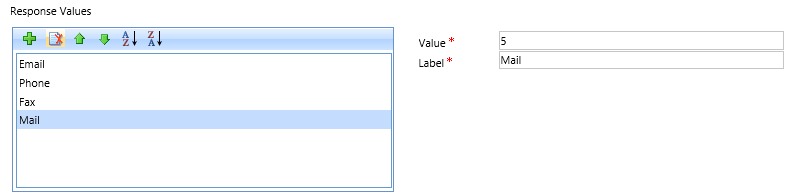
5. Click Save and Close.
![clip_image014[1]](https://www.powerobjects.com/wp-content/uploads/2014/01/Responses-5.png "clip_image014[1]")
Update the Lead Record
At this point, we have created the prompts for the CRM user. Next we need to create a step to update the lead record.
1. Click on the Page and select Add Step
2. Choose Update Record.
3. Provide a description for the update step.
4. Click Set Properties.

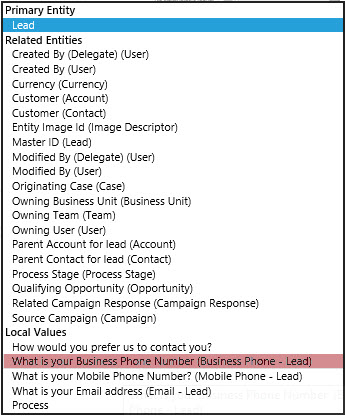
The Update Lead page is displayed, showing the lead entity properties. Here we will map the CRM user responses to the lead record fields.
5. Click in the Business Phone field.
6. In the Form Assistant select Look For > What is your Business Phone Number.
7. Click Add.
8. Click OK
9. Repeat steps 37-40 for Mobile and Email.
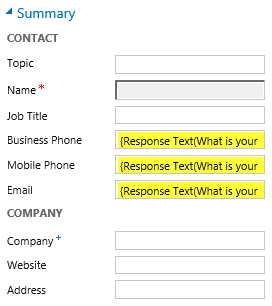
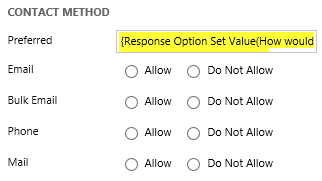
10. Under Contact Method click on Preferences.
11. In the Form Assistant select Look For > How would you prefer us to contact you.
12. Click Add.
14. Click Save and Close.
![clip_image014[2]](https://www.powerobjects.com/wp-content/uploads/2014/01/Lead-Record-14.png "clip_image014[2]")
Activate and Run Dialog
Once a dialog is finished, it will need to be activated. A dialog cannot be run until it has been active.
1. From the navigation menu at the top choose� and confirm the activation process at the prompt.
2.Navigate to the Leads entity.
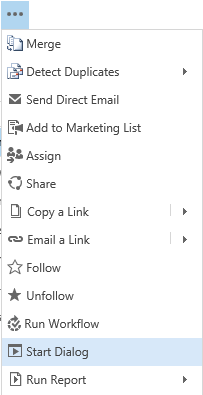
3. Click on the ellipsis.
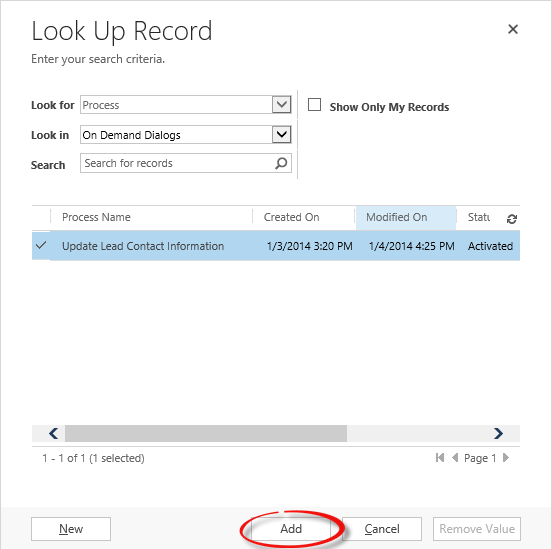
4. Choose Start Dialog.
5. Select the dialog that was just created.
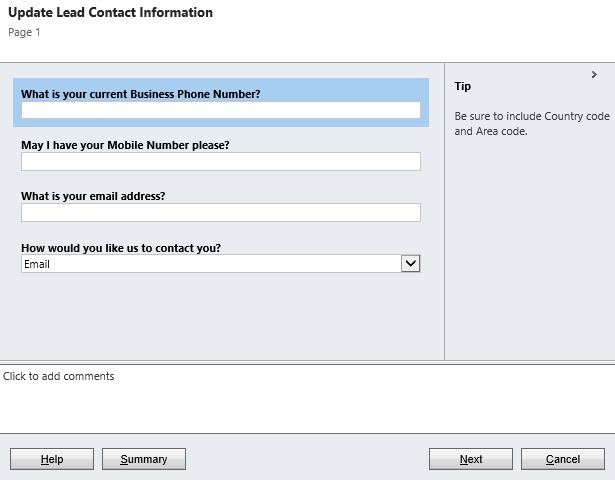
Voila! This gives us the completed Dialog Process within CRM.
This is a simple enough example but hopefully shows how Dialogs can be taken into other CRM Requirements.
With the Ribbon being less of a ‘thing’ from CRM 2013 onwards, and Modal Pop-ups being a slightly regressive UI choice – Dialogs are not always the best solution (and crucially, are not available in Mobile), and Business Process Flows can be a much slicker User Experience, however it is always useful to be aware of this functionality in Dynamics CRM and know when it might be the best option for tackling a particular requirement.
Further Reading
MSDN – Use dialogs in Dynamics 365 for Guided Processes
Dialogs – good training article for Dialogs
https://crmbook.powerobjects.com/system-administration/processes/dialogs/
The Power of Dialogs in CRM 2011 – useful PDF that looks at comparing Dialogs in CRM 2011 over the previous version of CRM v4, which is useful in showing where the Dialogs functionality in Dynamics CRM has come from.
https://rsmus.com/pdf/ws_dynamics_crm_power_dialotgs_3272012.pdf