Even as a long standing Dynamics Developer and Architect I’d held back slightly from getting into Custom PCF Development as one look at the steps involved gave me pause.
This is because the initial steps looked like a decent barrier to entry – as the initial start is heavily dependent on compiling via command line and npm.
The best technologies that people accustomed to ‘bog-standard’ TypeScript, Plugin Development and .Net might not be used to.
But like all new technologies, its only really off-putting until you’ve got stuck in and done your first Hello World style control.
Prep your Control folder
We can start building a Custom Control by creating a new Folder and then calling the following command from the Developer Powershell:
pac pcf init –namespace CRMCS.PCF.CustomControls –name ExampleControl –template field
This preps the Folder Structure with the right template files.
As a 2nd step, we can then ‘npm install’ to setup the node_modules in the Project Folder with the relevant script files.

Building the Custom Control
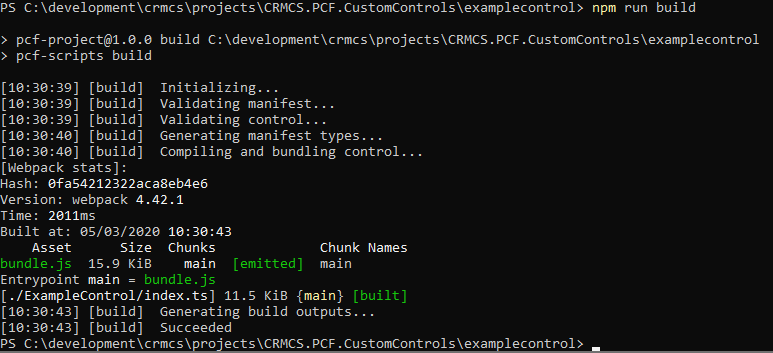
With our Developer PowerShell for VS2017 or VS2019 connected to the Folder for our Custom Control – we can then ‘npm run build’
This will build our control and in doing so, find and report on any exceptions the compiler finds in our Xml Manifest or TypeScript JS.
Unit Testing the Custom Control
The default position would be compiling the Control, packaging into a Solution ZIP, and the importing into Dynamics 365 to test our control.
However this would give us a slow and cumbersome way of testing our code as it develops.
Thankfully there is a better way as we can deploy our Control into a Test Harness and sample our logic before using in Dynamics 365.
We can do this from our Developer Powershell by running ‘npm start’.

Note that our Control will likely fail initially until we have supplied the right Parameters for our Control in the Data Inputs section of the Test Harness.
https://docs.microsoft.com/en-us/powerapps/developer/component-framework/debugging-custom-controls
One point when using the Test Harness is that the ‘page’ object part of the context may not have your CDS’s Url available via the .getClientUrl().
This will be a way to supply the Test Harness with a stubby Url to mimic how the Control will be used – but until we determine how best to do this, we can use a Conditional Statement or a blunt try/catch block to instead supply a fixed URL to our Dynamics 365 Environment during Testing with the Test Harness.
try {
this.baseUrl = (<any>context).page.getClientUrl();
}
catch (ex) {
this.baseUrl = “https://[mycrm].crm11.dynamics.com”;
}
When testing my PCF Control in the Test Harness – I would receive a 401 unauthorised error when attempting to call the Dynamics v9.1 REST API, despite the Browser being used for the Test Harness being authenticated and so passing the correct headers into the Harness. This will be an area to come back to see if we can have calls to Dynamics enabled within the Test Harness to run these without deploying fully to Dynamics 365.
Functional Testing the Control in Dynamics 365
We first must connect our development of the PCF Control to a target build of Dynamics 365 – ideally a Sandbox or Dev Environment where we can work with the Control.
pac auth create –url https://[mycrm].crm11.dynamics.com
We can push our control into Dynamics via the following command.
pac pcf push –publisher-prefix crmcs
This will install the Control into Dynamics so we can start connecting to the Fields on Forms and have our Control presented as the UI for a Field over the typical Text Box or standard UI.

Build –> Test –> Rework
As with any development (particularly when learning the ropes) we will hit our main loop:
- Specify – define our Inputs and Outputs in the ControlManifest.Input.xml
- Build using the index.ts and ‘npm run build’
- Unit Test in the Test Harness using ‘npm start’
- Functional Test by Deploying to a Sandbox using ‘pac pcf push’
With each deployment to our Sandbox Environment, we may see the Control fail to update or refresh on Testing.
This is often where we forget to increment the Version Number in the ControlManifest.input.xml file and so the control fails to update to the new version we have built and pushed.

So when at the stage of Functional Testing in Sandbox, we should keep an eye on incrementing the Version Number between releases.
Tips and Gotchas
- Lookup controls are currently not available for use as bound controls within PCF solutions !
- We can make use of the normal Javasccript model in Dynamics 365 by including references to feature-usage in our ControlManifest.Input.Xml

- The Code for the ExampleControl used in the screenshots in this article can be downloaded here.
Further Reading
When building my first PCF Custom Controls and looking at what is possible, I found the following links helpful:
PCF Controls – now I have my first PCF control, too
https://www.itaintboring.com/dynamics-crm/pcf-controls-now-i-have-my-first-pcf-control-too/
https://www.briteglobal.com/blogs/community/create-naics-pcf-control-webapi/
Power Apps Pro Dev & ISV Forum
https://powerusers.microsoft.com/t5/Power-Apps-Pro-Dev-ISV/bd-p/pa_component_framework
D365Spartan – Good Breakdown of the ControlManfest.Input.Xml
https://d365spartan.wordpress.com/2019/08/07/pcf-exploring-controlmanifest-file-in-detail/